
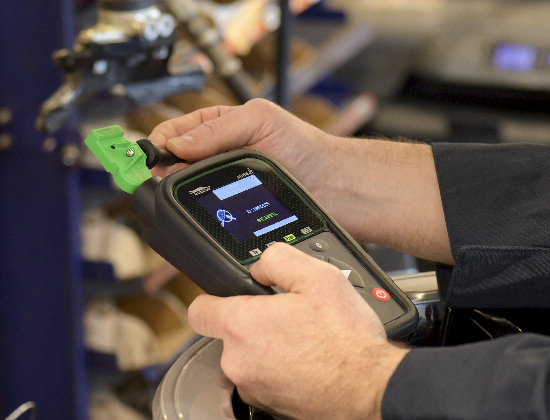
- Sensor Testing
- Point the tool’s antenna at the tire sidewall, near the valve stem
- OBD-learning
- Ensure that the tool has sufficiently charged battery
- Connect the OBD cable to the diagnostic port before turning the ignition on
- If the tool has trouble connecting to the vehicle’s diagnostic system, then disconnect the OBD cable and connect it again
- Toyota vehicles: if vehicle has trouble registering the new sensor IDs (transfer failure) then try unlocking the ECU first
- If there’s a problem transferring the new sensor IDs then check the vehicle’s diagnostic port for bent pins
- If the OBD-relearn fails then update the tool’s software
- Manual Learning (Ford & GM)
- Park the vehicle away from other cars & trucks that have a similar make
- If the horn doesn’t beep when activating a sensor then roll the vehicle forward a few feet and try again or roll down the windows
- If the car/truck doesn’t enter learning mode then check the key fob (General Motors vehicles). Not all after-market key fobs can activate relearn mode on GM vehicles.
- If the vehicle won’t go into learning mode via key fob then try initiating TPMS learning mode from the tire display on the dash (GM models)
- If TPMS learning mode can’t be started using the brake pedal then try using the hazard-flasher switch (Fords)
- Sensor Programming
- Always program Alligator sensors before installation
- Move other sensors away from the tool
- Point the tool’s antenna at the sensor’s valve cap when programming
- If installing a second set of wheels for wintertime, then use the Copy Set menu to clone the OEM sensors
- If the original sensors have bad batteries, then can still clone them using the tool’s Manual ID menu
- If the tool shows a warning message for firmware error, then update its software
- Tool Updating
- Make sure that the computer has a working internet connection
- If webVT doesn’t show any tool info after connecting it (serial number, etc) then make sure that the tool drivers are installed
- MISC
- If the vehicle isn’t shown, then update the tool
- When scrolling through the vehicle menu, press the left or right buttons to skip to the next page
- To return to the main menu, hold the C button for a few seconds
- If the tool won’t turn on correctly (shows white screen etc), then try starting it in boot mode: hold the okay button and press the power button. If it shows text on the display, then update the device via webVT.
